Begin
Node Introduction
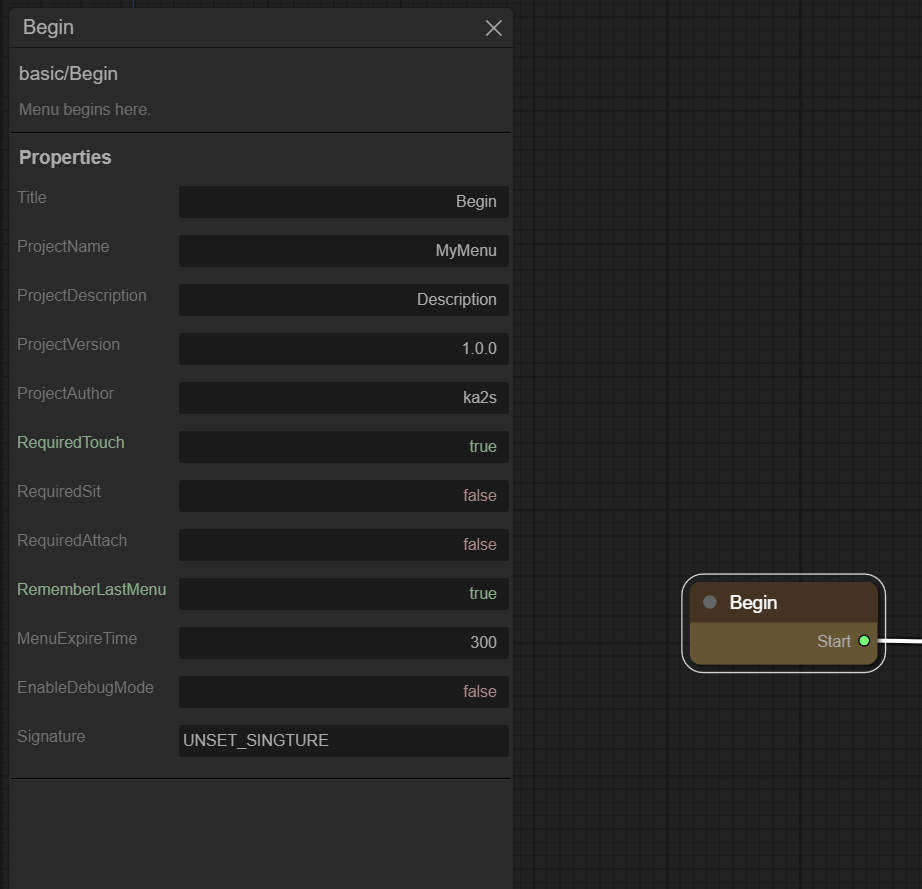
The Begin node is the starting point in EZMenu, where the menu logic begins. The Begin node has only one output, which connects to the main menu.
Inputs
- None
Outputs
- Start - Connects to the main menu.
Node Properties
The Begin node has many properties that determine how the menu operates. In the Begin node, you can set the project’s name, description, version, author, and other information. This information helps you better manage your project.
- Title - This is the name of the node, which can be customized. This property exists for every node and can be used to identify the node’s functionality. This property will not be further explained below.
- ProjectName - This is the name of the project, which can be customized. When exporting the project, the default project name is the value of this property. The generated script file will also be named after this property, and the value will be displayed in the generated script file.
- ProjectDescription - This is the description of the node, which can be customized. It helps you record relevant information about the project. It is recommended to fill in this property to better manage the project in the future.
- ProjectVersion - This is the version number of the project, which can be customized. It is used to identify the version of the project. When updating the script, you can use this property to mark the version number.
- ProjectAuthor - This is the author of the project, which can be customized. It is used to identify the author of the project. If you want to share the project with others, you can use this property to indicate the author.
The above are project properties. Next are the properties that determine the conditions for opening the menu. These may be a bit complex, and I will explain them in detail below, along with some example scenarios for setting them.
- RequiredTouch - Whether clicking the model opens the menu. If
true, clicking the model opens the menu; iffalse, clicking the model does not open the menu. - RequiredSit - Whether sitting on the model is required to open the menu. If
true, sitting is required to open the menu; iffalse, sitting is not required to open the menu. When this istrue, the following properties need to be set:- SitText - Sets the sit text on the model, which can be used to prompt players to sit.
- SitTargetOffset - The position offset after sitting. This cannot be
<0,0,0>, as it will prevent the Sit event from triggering. - ShowMenuOnSit - Whether the menu automatically opens after sitting. If
true, the menu automatically opens after sitting; otherwise, it does not.
- RequiredAttach - Whether wearing the item is required to open the menu. For models that require wearing to use, set this property to
true. Iffalse, wearing is not required to open the menu. When this istrue, you can set:- ShowMenuOnAttach - Whether the menu automatically opens after wearing. If
true, the menu automatically opens after wearing; otherwise, it does not.
- ShowMenuOnAttach - Whether the menu automatically opens after wearing. If
- EnabledWhileSitting - Whether the menu is available while sitting on the model. If
true, the menu is available while sitting; iffalse, the menu is unavailable while sitting.
- RememberLastMenu - Whether to remember the last opened menu. If
true, the last opened menu is remembered, and the next time the menu is opened, it will automatically open the last menu. Iffalse, the last menu is not remembered, and the main menu is opened every time. - MenuExpireTime - Sets the expiration time of the menu in seconds. After the menu is opened, it will automatically expire after this time. If set to
0, the menu never expires. - EnableDebugMode - Whether to enable debug mode. When enabled, some debug information will be output in the chat. This is useful for custom development and debugging. If you do not care about this information, set this property to
false.
- Signature - This is the product’s signature information. If your product needs to be shared with others, you can obtain the signature information using the
[EZMenu]setupscript and fill it into this property. Then replace the[EZMenu]setupscript with the[EZMenu]masterscript. The[EZMenu]setupscript can only be used during the creation of material textures. It does not require a signature, but this script cannot be shared with others. Only after replacing[EZMenu]setupwith[EZMenu]mastercan your product be shared with others.
Example Scenarios
Example Scenario 1: No sitting or wearing required, click to open the menu
RequiredTouch: trueRequiredSit: falseRequiredAttach: falseEnabledWhileSitting: trueExample Scenario 2: Sitting required, no wearing required, click to open the menu
RequiredTouch: trueRequiredSit: trueRequiredAttach: falseEnabledWhileSitting: trueExample Scenario 3: Wearing required, no sitting required, click to open the menu
RequiredTouch: trueRequiredSit: falseRequiredAttach: trueExample Scenario 4: No wearing or sitting required, click to open the menu, but menu is unavailable while sitting
RequiredTouch: trueRequiredSit: falseRequiredAttach: falseEnabledWhileSitting: falseIncorrect Settings Examples
Incorrect Example 1: All settings are false, no way to open the menu
RequiredTouch: falseRequiredSit: falseShowMenuOnSit: falseRequiredAttach: falseShowMenuOnAttach: falseIncorrect Example 2: Sitting required, but menu is unavailable while sitting (logical contradiction)
RequiredTouch: trueRequiredSit: trueEnabledWhileSitting: false